Play SRT from server
It’s how to play SRT from SRTMiniServer by:
vMix (Windows)
OBS (macOS & Windows)
Larix Player (iOS & Android)
Haivision Play Pro (iOS & Android)
VLC
As you known SRTMiniServer accepts incoming SRT feeds and converts to NDI feeds.It’s main function, but …
What’s about provide SRT to play ?
For example we want read SRT by other vMix remotely when NDI is impossible.
Few months ago we provide power function called “CrossLine” and it allows re-sending SRT to player.
Setup SRTMiniServer
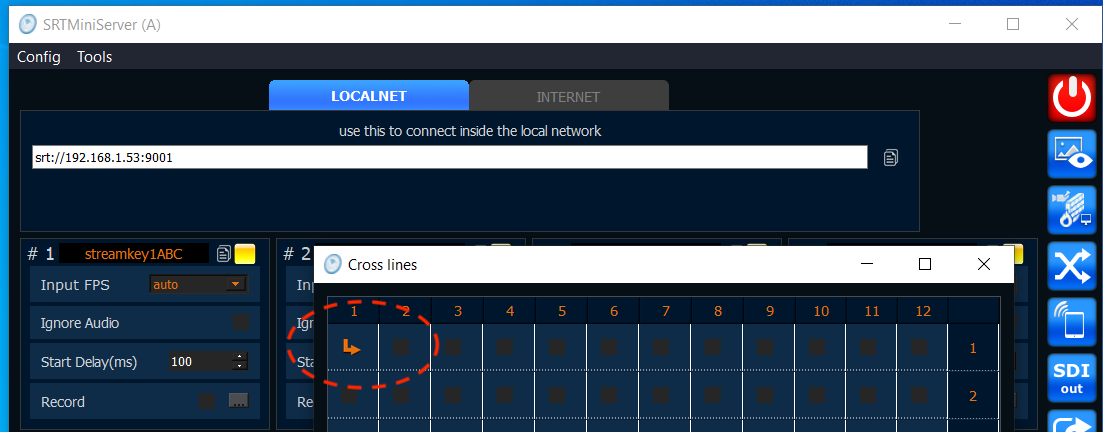
For this guide:
we have Line 1 with stream id as streamkey1ABC
incoming SRT from Line 1 will be re-sent to Line 1 (by CrossLine matrix)
Main points for understanding:
encoder stream SRT to Line 1 with streamid streamkey1ABC
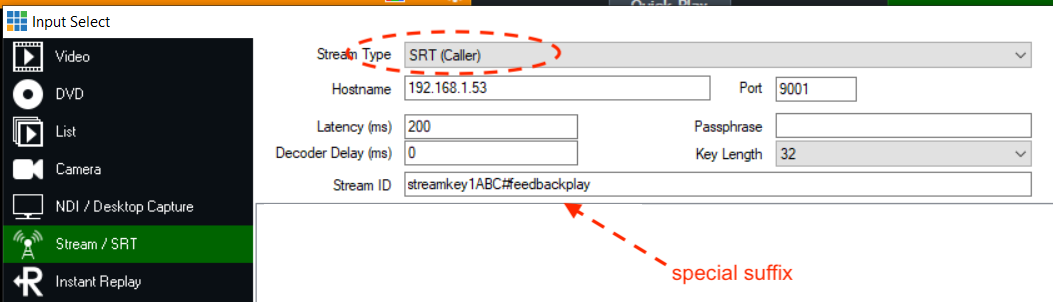
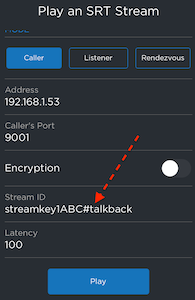
for player we should use streamid equals streamkey1ABC#feedbackplay or ** streamkey1ABC#talkback** (we add special suffix).
NOTE: since version 2.1 you can also use instead**#** — for example** streamkey1ABC*talkback** — ** NOTES**: for one line you can connect up to 100 players. For change it you can use max_line_players in “Advanced Settings ”
Setup vMix for play SRT from SRTMiniServer
for example we can read SRT by vMix
use “caller” mode
don’t forget setup stream id with special suffix “#feedbackplay”
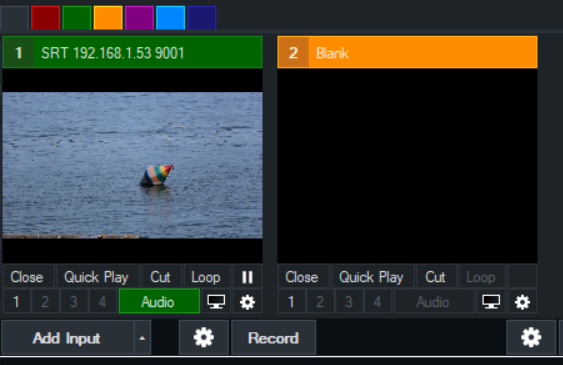
SRT playback
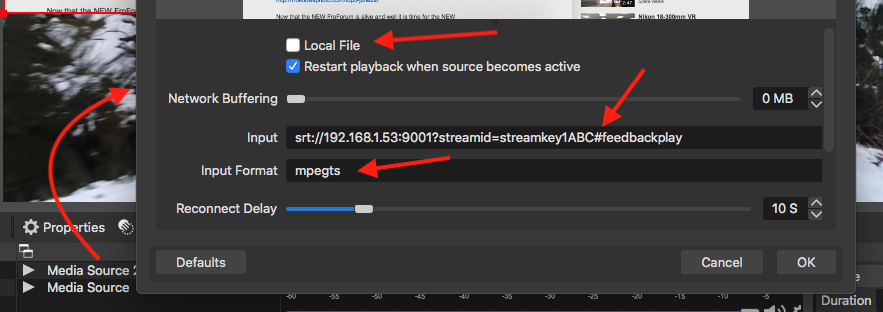
Setup OBS for play SRT from SRTMiniServer
It’s easy: you need add “Media Source” and do setup:
Configuration for play SRT
Setup Larix Player
It’s same way: add special suffix to original streamid.
Configuration for play SRT
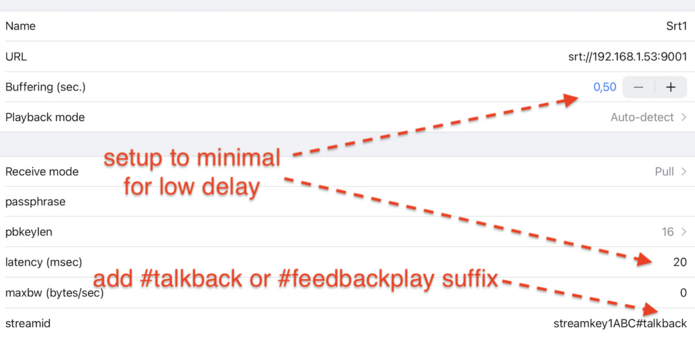
Setup Haivision Play Pro
It’s same way: add special suffix to original streamid.
Configuration for play SRT
Setup VLC for play SRT from SRTMiniServer
Please check:
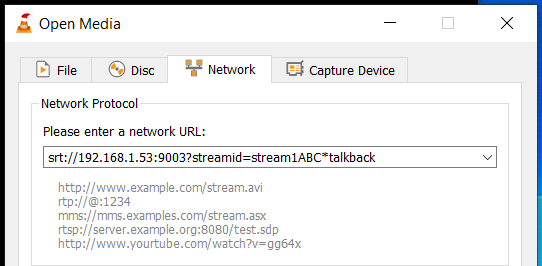
you need VLC version 3.0.17.4 Vetinari or more.
go to Open Media–>Network and type address as on image below: you should use suffix *talkback