Conference Addon
removed from 2.5.1
We recommend use TalkBackManager for audio communication with reporter
Conference Addon is a tool that allows to organize two-way communication between many locations, for example Studio and Reporter or Studio and Guest.
Conference Addon also provides the ability to share screen and manage slides that are broadcast from the Studio using TV Guest encoder. More details about this case you can find here .
The main advantage that the addon gives is that it takes upon itself the creation of a mix-minus audio stream for each participant
Common question is “ConferenceAddon vs CrossLines”
Let explain: CrossLines is low-level tool. It’s not create mix-minus audio: you should create mix-minus audio for each participant by other tool (like vMix for example). CrossLines is perfect for 1-2 participants but for many it’s not usefull.
In other hand ConferenceAddon does mix-minus audio and use special method for encoding one video feed for many participants.
To open the addon please go to Top Menu–>Tools–>ConferenceAddon. In the first opened window “Participants” select the lines you are going to connect to the Studio and click “OK” button:
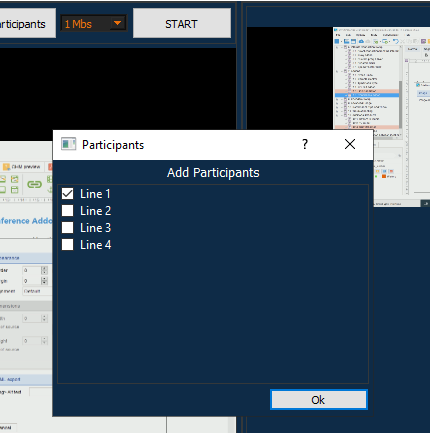
After selecting the lines, “Conference Addon” screen becomes available:
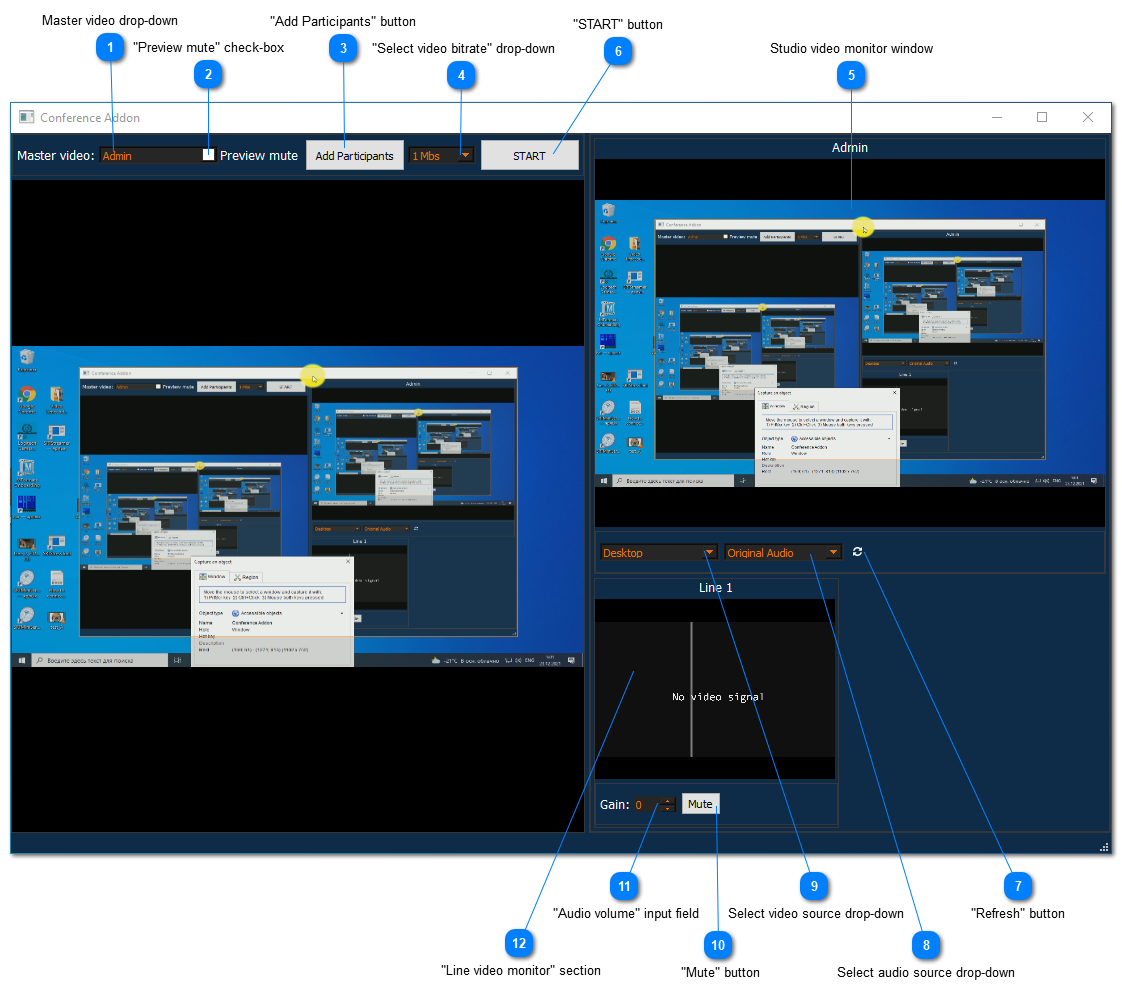
The following options are available in Conference Addon:
Master video drop-down
Allows to select the source(line) of video broadcast transmitted to the Studio from the Guest/Reporter.
“Preview mute” check-box
Allows to mute the audio of the transmitted video to the Studio
“Add Participants” button
Allows to select the lines which you are going to connect to the Studio.
“Select video bitrate” drop-down
Allows to set video bitrate for video broadcast. The following values are available for selection:
256 Kbs
512 Kbs
1 Mbs
2 Mbs
3 Mbs
5 Mbs
10 Mbs
Studio video monitor window
Allows to monitor the video transmitted from the Studio side to the Guest/Reporter.
“START” button
Turns ON the video broadcast from the Studio to the Guest/Reporter. When click on this button the stream from the Studio is transmitted to all connected lines(Guests/Reporters).
“Refresh” button
Allows to refresh the list of video and audio resources if new ones have been added.
Select audio source drop-down
Allows to select the microphone on which you are going to communicate with the Guest/Reporter.
Select video source drop-down
Allows to select the type of video source from which you are going to broadcast the picture to the Guest/Reporter.
“Mute” button
Allows to mute the audio of the video stream going to the Studio from the line.
“Audio volume” input field
Allows to set the audio volume of the video stream going to the Studio from the line.
“Line video monitor” section
Shows a video stream from lines connected to the Studio.